From Instagram Chat to Deal in Zoho CRM (Doctors/Clinics)
Goal
A business developer is chatting with a doctor on Instagram (via Zoho SalesIQ) and needs to:
-
Capture the doctor as a Contact
-
Create a Deal in Zoho CRM directly from Zoho SalesIQ
1. Important: Instagram vs. SalesIQ
⚠️ Attention
-
Use Instagram only for the very first contact (first message + first reply).
As soon as the doctor:
-
responds and
-
shows interest in receiving more information / collaborating,
move the communication to SalesIQ (WhatsApp / website chat).
-
You can reopen the Instagram conversation and send a short follow-up after 24 hours if needed, but the main communication must be in SalesIQ, not Instagram.
2. Before You Start (What to Collect)
When you chat with a doctor on Instagram, try to collect at least:
-
Full name
-
Medical specialty
-
Hospital / Clinic name
-
Country / City
✅ Mandatory
-
Email address
You need the email to:
-
Create a Contact in Zoho CRM (via Zoho SalesIQ)
-
Create the Deal correctly in Zoho CRM (via Zoho SalesIQ)
✅ Very important, if possible
-
Mobile / WhatsApp number → to continue communication in SalesIQ / WhatsApp
If the doctor refuses to share an email:
➡️ Do not create a Contact/Deal yet.
Ask again politely and explain that you need the email to send official information and next steps.
3. Step-by-Step in Zoho SalesIQ & Zoho CRM
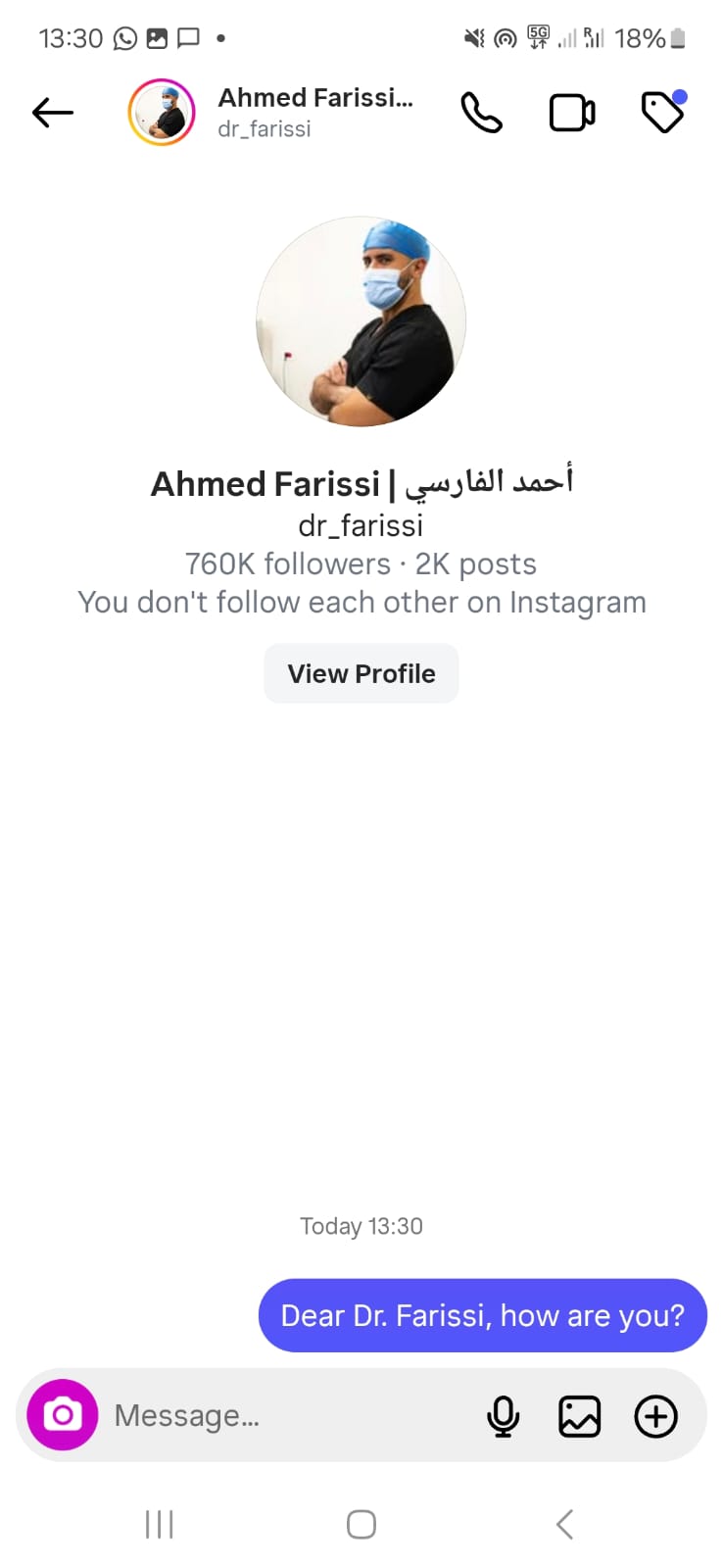 Step 1 – First message on Instagram
-
You send the first message from Instagram (via ZohoSalesIQ) to introduce Saleem.
-
Example: short intro + ask if they are interested in receiving more information.
Step 2 – Doctor shares contact details
Once the doctor replies and shares his email (and ideally phone):
-
In Zoho Social, open the Instagram conversation with the doctor.
-
Click on the email address in the conversation.
Use the Zoho Social option to “Add to CRM”:
-
Create a Contact (and a Lead too, if Zoho Social forces it – but our focus is the Contact + Deal)
-
-
Name:
Dr. Firstname Lastname -
Email (mandatory)
-
Mobile / WhatsApp (if available)
-
Instagram handle (in a field or in the notes)
Step 3 – Create a Deal from Zoho SalesIQ
As soon as the doctor has:
-
Shared his contact details and
-
Clearly shown interest in getting more information / collaboration
➡️ For us, he is already a Deal, not just a Lead.
In Zoho Social:
-
In the same Instagram conversation, click on “Add Deal”.
-
Link the Deal to the Contact you just created.
Step 4 – Fill in the Deal information to create a Deal in Zoho CRM
When the Add Deal window opens (via Zoho Social → Zoho CRM):
Fill in at least:
Deal Name
-
Example:
Dr. [Firstname Lastname] – Saleem Doctor Onboarding
-
Stage
-
Start with:
New
-
Amount
-
Use a placeholder, e.g.
1000 BHD(this is not final, just a reference)
-
Closing Date
-
Set a date within 1 month
-
Goal: within 30 days, the doctor is either Closed Won (signed up) or Closed Lost
-
-
Primary Vertical:
Healthcare -
Deal Source / Lead Source:
InstagramorZoho Social – Instagram -
Specialty: e.g. Orthopedic Surgeon, Cardiologist
-
Language(s) Spoken
-
Instagram Handle:
@username(field or notes)
Description / Notes (very important):
Add a short summary, for example:
Contacted via Instagram on [date].
Interested in: [joining Saleem / telemedicine / receiving leads / collaboration].
Communication moved to SalesIQ / WhatsApp on [date].
Main points from conversation:
– …
– …
Save the Deal.
Step 5 – See your Deals in Zoho CRM
-
Go to Zoho CRM → Deals.
-
Filter by Deal Owner = your name (ownership filter).
-
You should now see all your doctor Deals created via Zoho Social.
These are the Deals you will actively work on (follow-up, information, onboarding).
Step 6 – Move communication to SalesIQ
Once the email is collected and the Deal & Contact are created:
-
Start communication from Zoho CRM and/or SalesIQ (e.g. WhatsApp message or other connected channel).
-
In the first message, reference Instagram:
“Hi Dr. [Name], this is [Your Name] from Saleem. We spoke on Instagram. I’m moving our conversation via Email so we can share information and documents more securely.”
-
Log important information as:
-
Notes, and/or
-
Activities (calls, WhatsApp summaries, emails)
directly on the Deal or Contact in Zoho CRM
Step 7 – Prepare and send the informational email
Once your Deals are visible in Zoho CRM and you have all necessary details:
-
Open each Deal.
Prepare the informational email to the doctor, including:
-
Brief introduction
-
Saleem Doctor presentation / deck
-
Next steps for collaboration and onboarding
-
-
Send the email from Zoho or your usual email client and log it to the Deal/Contact (if possible).
4. Quick Checklist for Business Developers
Before you move on to the next doctor, check:
-
First contact was done via Instagram, main communication now in SalesIQ
-
Email collected (mandatory)
-
Contact created in Zoho CRM (via Zoho Social)
-
Deal created and linked to the Contact
-
Deal Source = Instagram / Zoho Social
-
Doctor’s name, specialty, hospital/clinic, email, phone recorded
-
Deal name =
Dr. [Name] – Saleem Doctor Onboarding -
Onboarding tasks planned (send info + agreement, collect documents, etc.)
-
Deal stage up to date
Related Articles
Case Manager Guide: Assigning a Deal to a Partner via Portal Viewer
Goal Assign a deal to a partner (e.g. TravelForMed) so that the partner can see the deal in the Supplier Portal and respond by adding notes and uploading documents. Important: The partner can view deal information, but cannot edit deal fields. They ...How to Contact Saleem Support (Email, Chat, Help Center)
If you need help, you can reach the Saleem Support Team in three ways. Choose the option that’s easiest for you. 1) Contact us by Email Send an email to: support@tellsaleem.com Use email if you want to share detailed information or attachments ...Doctor Onboarding Guide: NHRA Invitations & Saleem Profile Setup
Audience: Licensed Doctors onboarding to Saleem Telemedicine Portal URL: https://doctor.tellsaleem.com Support Email: support@tellsaleem.com This guide explains how doctors can complete onboarding and start receiving telemedicine appointments through ...Getting Started on Saleem (Signup → Verification → Profile)
Welcome to Saleem. This guide explains how hospitals and clinics can create an account, complete verification, and set up their facility profile to start receiving patient requests. 1) Create Your Hospital/Clinic Account Start by signing up on Saleem ...How the Saleem Care Process Works (From Request → Plan → Booking)
The easiest way to get the fastest support and a smoother experience is to sign up first on Saleem: https://tellsaleem.com/register This helps us link your request to your profile and assign the right case manager quickly. Overview: The Step-by-Step ...